How to Add a Before and After Slider to a Wix Website
How to show results with a before and after image slider on Wix: preparing matching photos, labeling them, choosing the starting position, and checking the slider on phones and with a keyboard.
A before and after slider lets visitors drag a divider across two photos to see a change for themselves: a renovated kitchen, a cleaned carpet, a retouched portrait. It persuades better than two photos side by side because the visitor controls the comparison. This guide covers preparing the images, setting up the slider, and checking it works for every visitor.
Prepare two photos that line up
The effect only works when both photos show the same scene from the same position. Shoot from the same spot, at the same height and zoom, and crop both images to the same size and aspect ratio before uploading. Even a small shift makes the result look less convincing.
Use similar light where you can. If the after photo is much brighter, visitors may credit the lighting rather than your work.
- Same camera position and zoom
- Same crop and aspect ratio
- Similar lighting
- One clear change per comparison
Set up the slider
In Revealio, choose the before image and the after image from your Wix media, add short labels such as "Before" and "After", and write an image description for each so screen-reader users know what changed. Then choose where the divider starts: in the middle for a balanced view, or closer to one side to draw attention to the result.
Add the slider to a page in the Wix Editor and publish the site. A results page, a service page or a project case study are natural places for it.
Check it on phones and with a keyboard
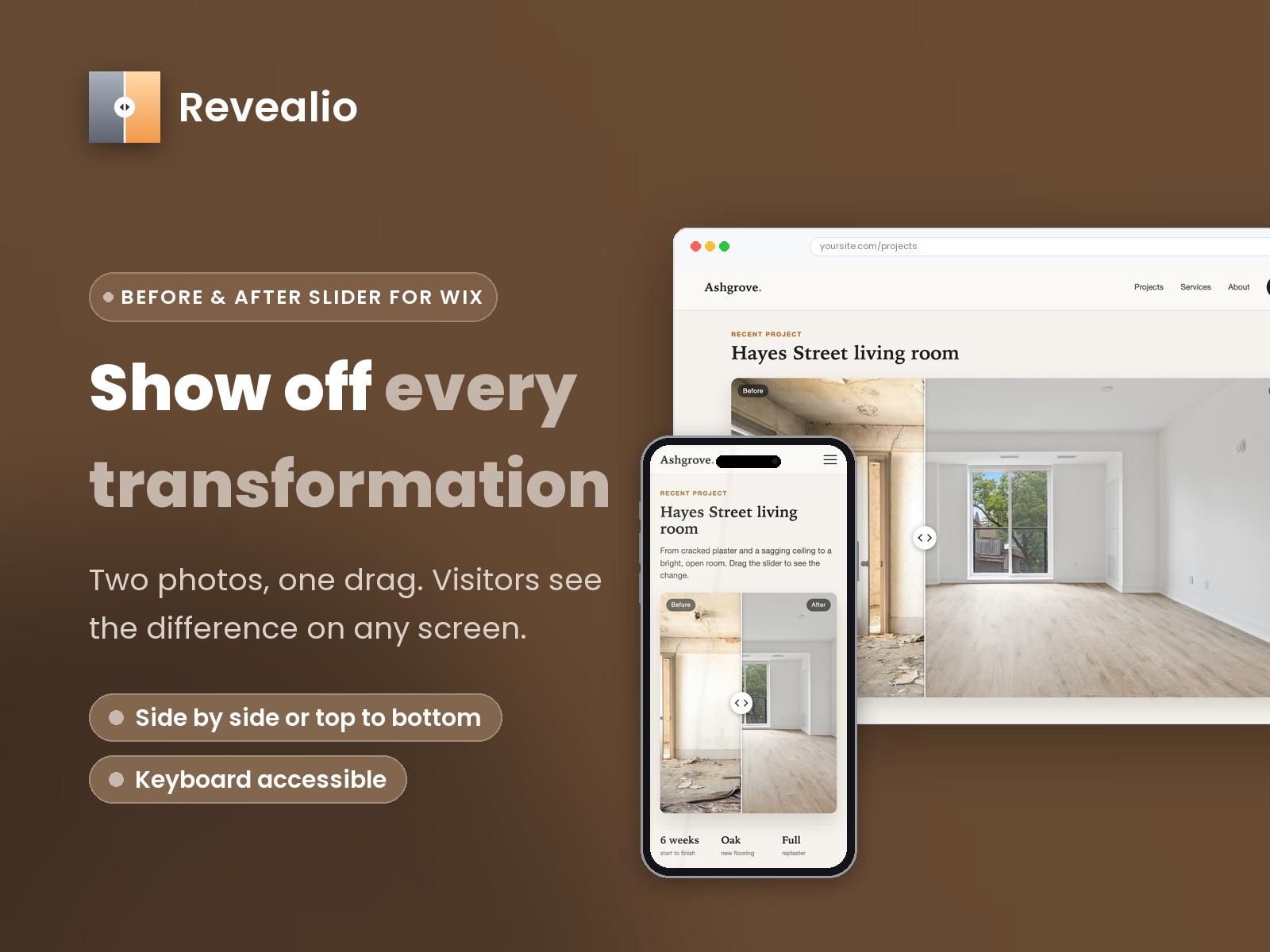
Most visitors will drag the divider with a finger. Open the published page on a phone and make sure the slider fills the width comfortably and the labels stay readable. Then try it with a keyboard: tab to the slider and use the arrow keys to move the divider.
Frequently asked questions
Can I add a before and after slider to Wix without code?
Yes. A slider app gives you a dashboard to choose the two images and a widget to place on any page.
Does the slider work on mobile?
Yes. Visitors drag the divider with touch on phones and tablets, with a mouse on desktop, or with the arrow keys.
How many comparisons can I show?
Revealio’s Free plan includes one saved comparison. Pro is $4.99/month and includes up to 100, so you can show a different result on each project page.
What size should the images be?
Use the same dimensions for both images, wide enough for the page, for example 1600 pixels across. Matching sizes matter more than the exact number.
Related Wix guides
Try Revealio on Wix
Free includes one saved comparison. Pro is $4.99/month, or $49.92/year when billed yearly (17% off), and includes up to 100 saved comparisons. Billing is handled by Wix.