How to Add a Price Quote Calculator to a Wix Website
How service businesses can show an instant price estimate on Wix: choosing the questions that drive price, writing price rules, checking estimates before visitors do, and setting expectations about the final price.
Many visitors leave a service website because they cannot see a price. A quote calculator answers the first question every customer has: roughly how much will this cost me? This guide is for cleaners, movers, gardeners, painters, tutors and other businesses that price by a few known factors, and shows how to turn that pricing into an itemized estimate on a Wix site.
Choose the questions that drive your price
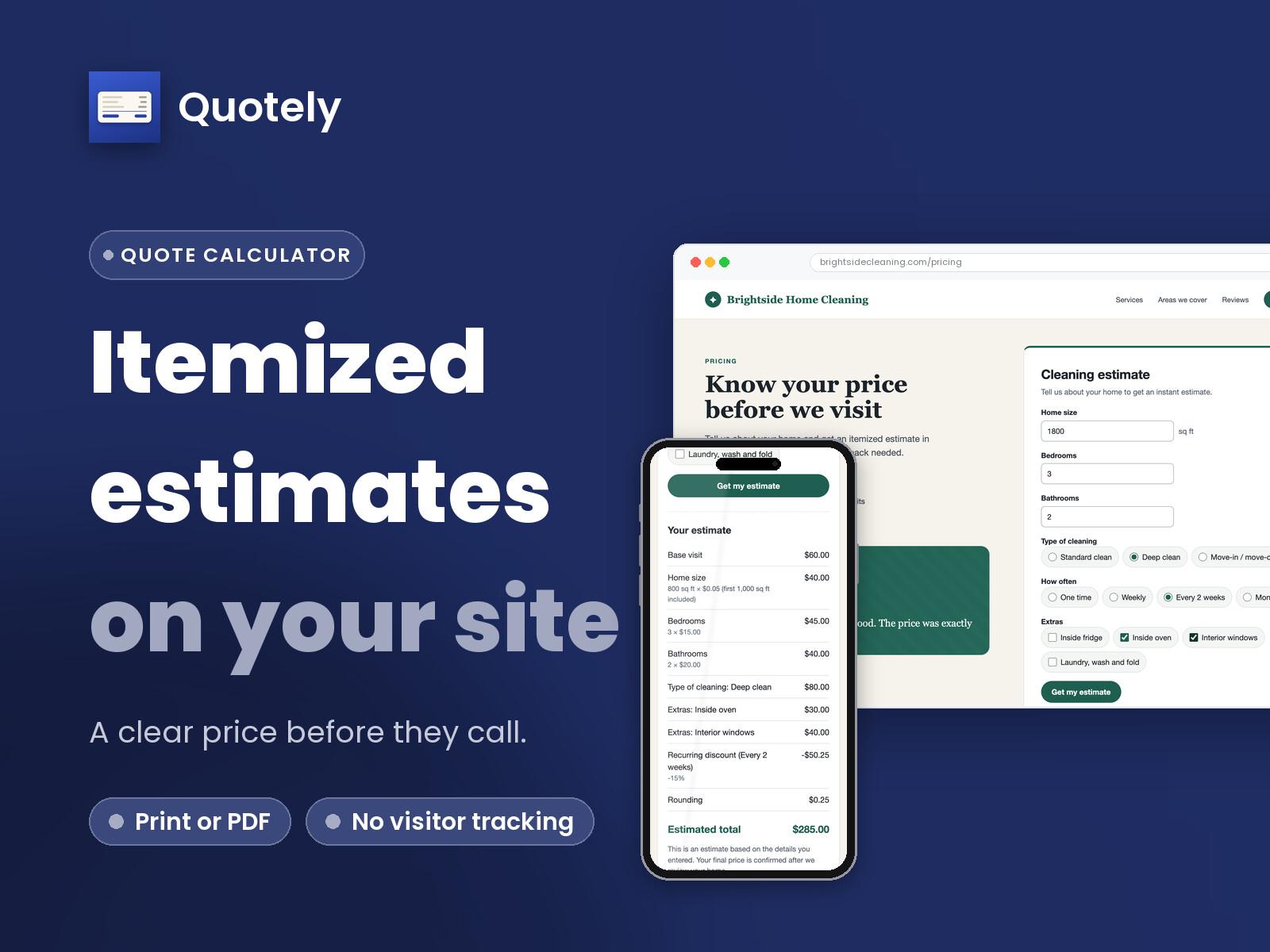
List the two to six things that change your price most: home size, number of rooms, type of service, how often, and extras. Each becomes a question: a number with a range and unit, one choice from a list, or a set of optional extras.
Leave out anything that does not change the price. Every extra question costs you visitors who give up before the estimate.
- Numbers with a unit, like square feet or hours
- One choice from a list, like type of cleaning
- Optional extras
- Two to six questions in total
Turn your pricing into rules
Write how each answer changes the price: a fixed base fee, a price per unit with some units included, a price per option, or a percentage up or down, such as a discount for regular visits. Add a minimum charge and choose whether to round the total.
Visitors then see each line of the estimate and the total, which makes the number easier to trust than a single figure.
Check the estimate before visitors do
Before publishing, try a few real jobs you have quoted recently and compare the calculator’s estimate with what you charged. Adjust the rules until they match, then add the calculator to your pricing or booking page and publish.
Set expectations about the final price
Add a short note under the estimate, for example that the final price is confirmed after a visit. Visitors can print the estimate or download a summary to keep, which helps when they call you.
Because the estimate is calculated in the visitor’s browser, your price rules are readable by anyone who inspects the page. Only use prices you are happy to publish.
Frequently asked questions
Can I add a price calculator to Wix without code?
Yes. A calculator app gives you a dashboard to set questions and prices, and a widget to place on any page.
Is the estimate a binding quote?
No. It is an estimate based on your prices and the visitor’s answers. Add a note explaining how the final price is confirmed.
Does a quote calculator take payments?
Quotely shows an estimate only. It does not take payments or change prices in Wix Stores or Wix Bookings.
How many questions and price rules can I use?
Quotely’s Free plan allows up to 6 questions and 10 price rules. Pro is $4.99/month and allows up to 30 questions and 60 price rules.
Related Wix guides
Try Quotely on Wix
Free includes one calculator with up to 6 questions and 10 price rules. Pro is $4.99/month, or $49.92/year when billed yearly (17% off), and allows up to 30 questions and 60 price rules. Billing is handled by Wix.