How to Add Engraving and Monogram Personalization to Wix Stores
How to sell personalized products on Wix Stores: choosing what shoppers can personalize, setting text limits, offering color choices, showing a live preview, and making sure every detail reaches the order.
Personalized products sell well as gifts: engraved jewelry, monogrammed towels and tote bags, printed mugs with a name. The hard part is not taking the order but getting it right. Shoppers want to see what they are buying, and you need the exact text and option on every order. This guide covers how to set up personalization on a Wix Stores product so both sides get what they expect.
Decide what shoppers can personalize
Keep personalization to what you can actually make: usually one line of text, such as initials, a name or a short message, and one visual choice, such as thread color, ink or metal finish. Every extra field is another chance for a shopper to give up or for an order to go wrong.
Write the field label the way your shoppers think about it ("Monogram", "Engraving", "Name on the mug") and use the placeholder to show an example of the format you expect, like "Your initials".
- One text field with a clear label
- An example in the placeholder
- One visual option with 2 to 8 choices
- Only choices you can produce
Set limits that match what you can make
Set a character limit that fits the space on the product: three or four characters for a monogram, 12 to 20 for a name, up to 40 for a short message. Shoppers see a character count as they type, so they know when they have run out of room.
If the product cannot be sold without personalization, make the text required. Shoppers then cannot add it to the cart with the field empty.
Show a live preview on the product photo
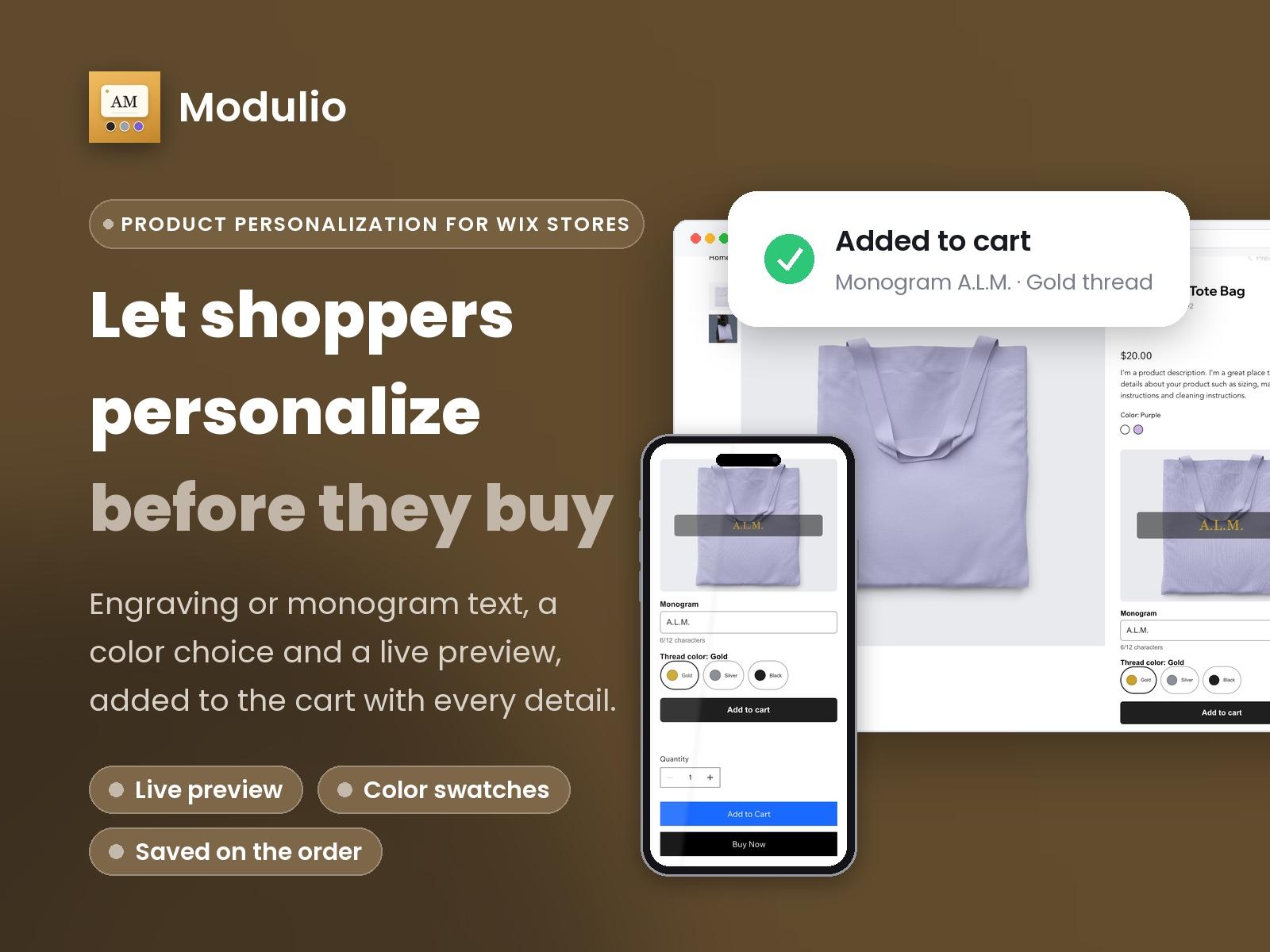
A preview removes most of the doubt about a personalized purchase. With Modulio, the shopper’s text appears on the product photo in the font, color and position you choose, and updates as they type or change the color.
Native Wix Stores options such as size or color still work as usual. The shopper picks them on the product page, and the personalized item is added with that variant at the price Wix Stores sets.
Make sure every detail reaches the order
When a shopper adds the item with Modulio’s Add to cart button, the text and the chosen option are attached to the cart line as description lines, for example "Monogram: A.L.M." and "Thread color: Gold". They stay on the item through checkout and appear on the Wix order, so you can make exactly what was ordered.
The product page’s own Add to Cart button adds the item without personalization. Say in the product description that shoppers should personalize the item above, and place a test order before you announce the product.
Frequently asked questions
Can I add an engraving field to Wix Stores without code?
Yes. A personalization app adds the text field, the color choices and a preview to the product page, and you set them up from the Wix dashboard.
Does the personalization change the product’s price?
Not with Modulio. Wix Stores keeps control of price, tax and stock. If personalization costs extra, include it in the product price or create a separate variant with a higher price.
Where do I see what the customer typed?
On the Wix order. The text and the chosen option appear as lines under the product name, in the cart, at checkout and in the order details.
How many products can I personalize?
Modulio’s Free plan personalizes one product. Pro is $12.99/month and personalizes up to 50 products at a time.
Related Wix guides
Try Modulio on Wix
Free personalizes one product. Pro is $12.99/month, or $129.48/year when billed yearly (17% off), and personalizes up to 50 products at a time. Billing is handled by Wix.