How to Feature Your Best Services on a Wix Bookings Site
How Wix Bookings businesses can put their most popular appointments, classes and courses up front: choosing what to show, ordering it, sending visitors straight to booking, and checking that bookings come in.
A long service list makes visitors work: they scroll, compare and often leave before they book. Most service businesses earn most of their bookings from a handful of services, so the homepage should lead with those and make booking one click away. This guide shows how to choose and order the services you feature on a Wix Bookings site and how to check that the setup brings bookings in.
Choose the services to feature
Start from your booking history: which appointments, classes or courses do new clients book first? Feature three to six of those. Add an introductory or trial offer if you have one, since it is the easiest first booking.
Only feature services that can be booked online right now. A hidden service or one that needs a phone call is a dead end on a homepage.
- Your most-booked services
- An intro or trial offer
- Bookable online today
- Three to six to start
Put them in the right order
Visitors read top to bottom and most click the first option that fits. Put the service most new clients want first, then the next most popular, and keep long or expensive packages lower down.
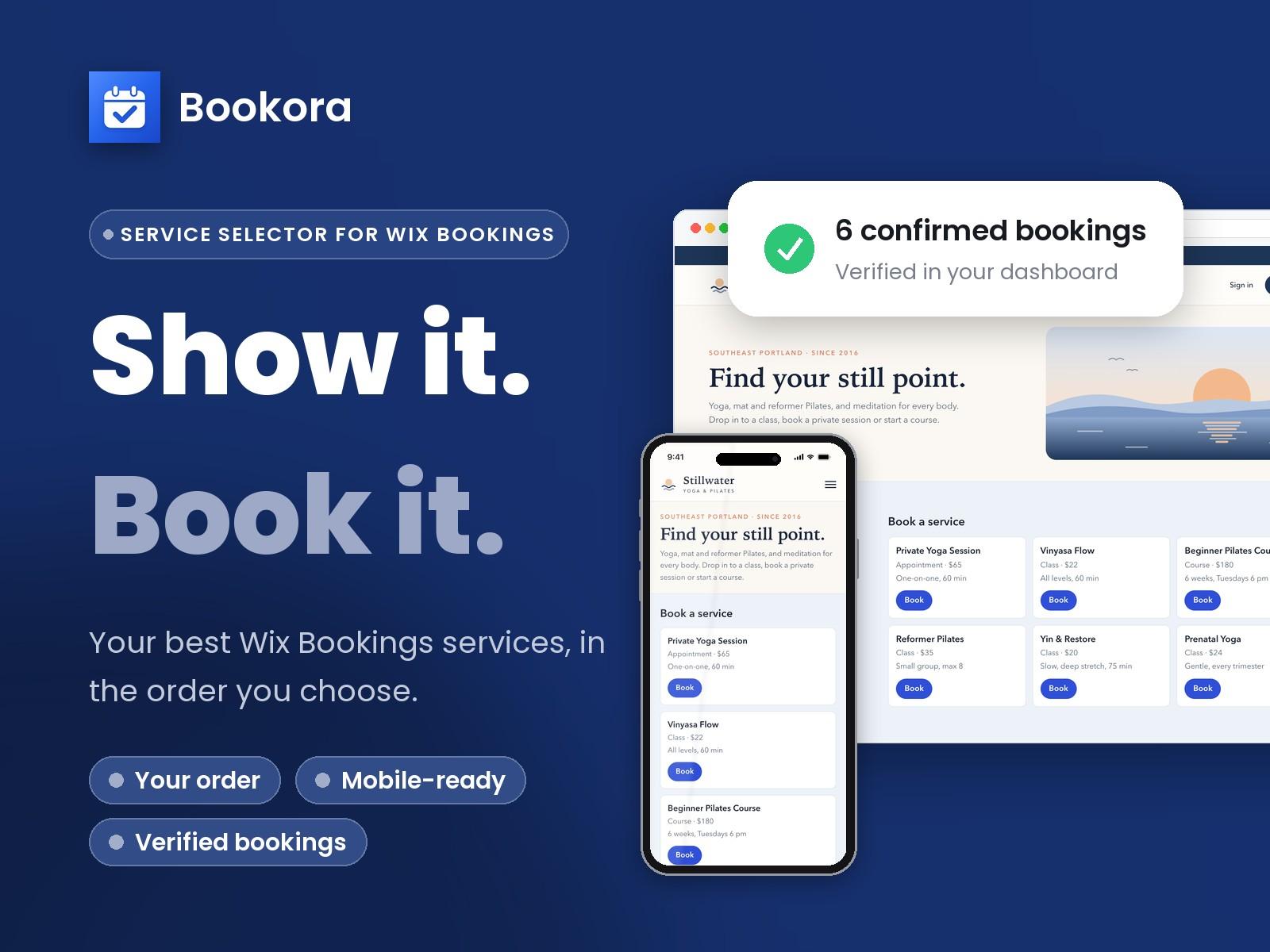
With Bookora you tick the services in the dashboard and move them up or down. Visitors see them in exactly that order, each with its type and price.
Send visitors straight to booking
Each featured service needs one clear action. Bookora gives every service a Book button that opens your regular Wix Bookings page, so visitors pick a time, pay and get their confirmation exactly as they would from your full list.
Place the section on your homepage, near the top, or on a landing page you link from ads and social posts. Bookora does not create, change or charge for bookings; everything after the click stays in Wix Bookings.
Check that bookings come in
After you publish, make a test booking yourself, then run Bookora’s check for confirmed bookings. It counts confirmed bookings of the services you feature since you first saved your selection, which tells you the setup works.
Review the list every few months. If a featured service is rarely booked, swap it for one that is.
Frequently asked questions
Can I show only some of my services?
Yes. Bookora adds a compact selector where you hand-pick services from any category, set their order and check confirmed bookings, separate from your full Wix Bookings service list.
Will visitors still book through Wix Bookings?
Yes. The Book button opens your regular Wix Bookings page, so availability, payments and confirmations work as usual.
How many services should I feature?
Three to six is a good start. Bookora’s Free plan shows up to 3 services, and Pro shows up to 20.
How much does Bookora cost?
Free shows up to 3 services. Pro is $4.99/month and shows up to 20.
Related Wix guides
Try Bookora on Wix
Free shows up to 3 services in your selector. Pro is $4.99/month, or $49.68/year when billed yearly (17% off), and shows up to 20 services. Billing is handled by Wix.