How to Approve Members Before They Get Access on Wix
How to let members apply on your Wix site, review each application and approve, reject or revoke access, with an optional check for an active Pricing Plans plan.
Clubs, associations and communities often want to know who is joining before giving access. This guide covers installing Memberly, choosing who gets access, writing the members content approved members see, adding the Member access widget and reviewing applications as they arrive.
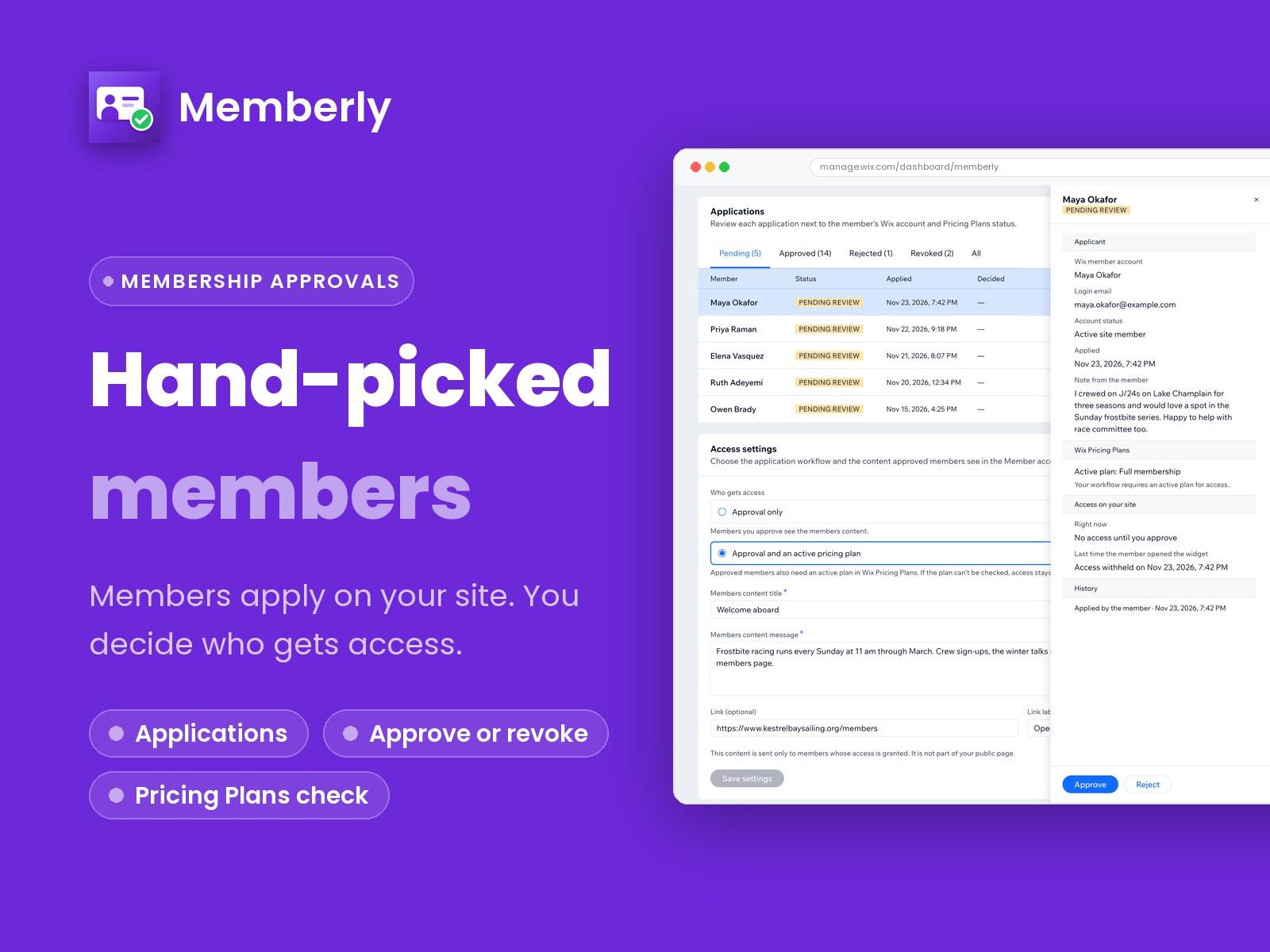
Install Memberly and check your members area
Install Memberly from the Wix App Market. Your site needs a members area, because members log in before they apply. Memberly adds a Memberly page to your site dashboard and a Member access widget for your site.
Free allows up to 25 approved members. Pro is $7.99/month, or $6.63/month billed yearly, and has no approved-member limit.
Choose who gets access
In the Memberly dashboard, choose your access rule. Approval only gives access to every member you approve. Approval and an active pricing plan also requires an active plan in Wix Pricing Plans.
With the plan rule, access stays closed whenever the plan status can’t be checked. Memberly reads the plan status and doesn’t take payments: Pricing Plans handles billing.
- Approval only
- Approval and an active pricing plan
Write your members content
Write the title, message and optional link that approved members see in the widget, such as a schedule, a members-only link or a welcome note. Memberly sends this content only to members whose access is granted, so it isn’t part of your public page.
Memberly controls this widget content, not your site’s page permissions. For whole members-only pages, use Wix’s own page permissions alongside it.
Add the Member access widget to a page
In the Editor, open the page where members should apply, such as a membership page, and add the Member access widget from Add Elements → App Widgets. Then publish your site.
Logged-in members apply with an optional note. Visitors who aren’t logged in are asked to log in first. After applying, members see that their application was received.
- Open your membership page
- Add the widget from Add Elements → App Widgets
- Publish your site
Review applications
New applications appear in the Memberly dashboard, filtered by status with counts. Open one to see the member’s account and login email, their Pricing Plans status, what their widget shows right now and the decision history.
Approve, reject, revoke or reinstate. Revoking takes effect the next time the member opens the widget. Memberly doesn’t send email notifications, so check the dashboard for new applications.
Frequently asked questions
Can I approve members on Wix without code?
Yes. Install Memberly, choose your access rule in its dashboard and add the Member access widget from Add Elements → App Widgets.
Does Memberly make pages members-only?
No. Memberly shows members content inside its own widget only to members you approve. Use Wix’s page permissions to make whole pages members-only.
Can I require a paid plan as well as approval?
Yes. Choose approval and an active pricing plan. Members then need your approval and an active plan in Wix Pricing Plans. If the plan can’t be checked, access stays closed.
How much does Memberly cost?
Free allows up to 25 approved members. Pro is $7.99/month, or $6.63/month billed yearly, with no approved-member limit. At the Free limit, members you already approved keep access.
Related Wix guides
Check Memberly beta status
Free allows up to 25 approved members. Pro is $7.99/month, or $6.63/month billed yearly, and has no approved-member limit. At the Free limit, existing approvals keep access and you can still reject and revoke; only new approvals are blocked.