How to Create a Client Portal on Your Wix Site
How service businesses can give each client a private page on their Wix site with project updates, private files and approval of the exact version they reviewed.
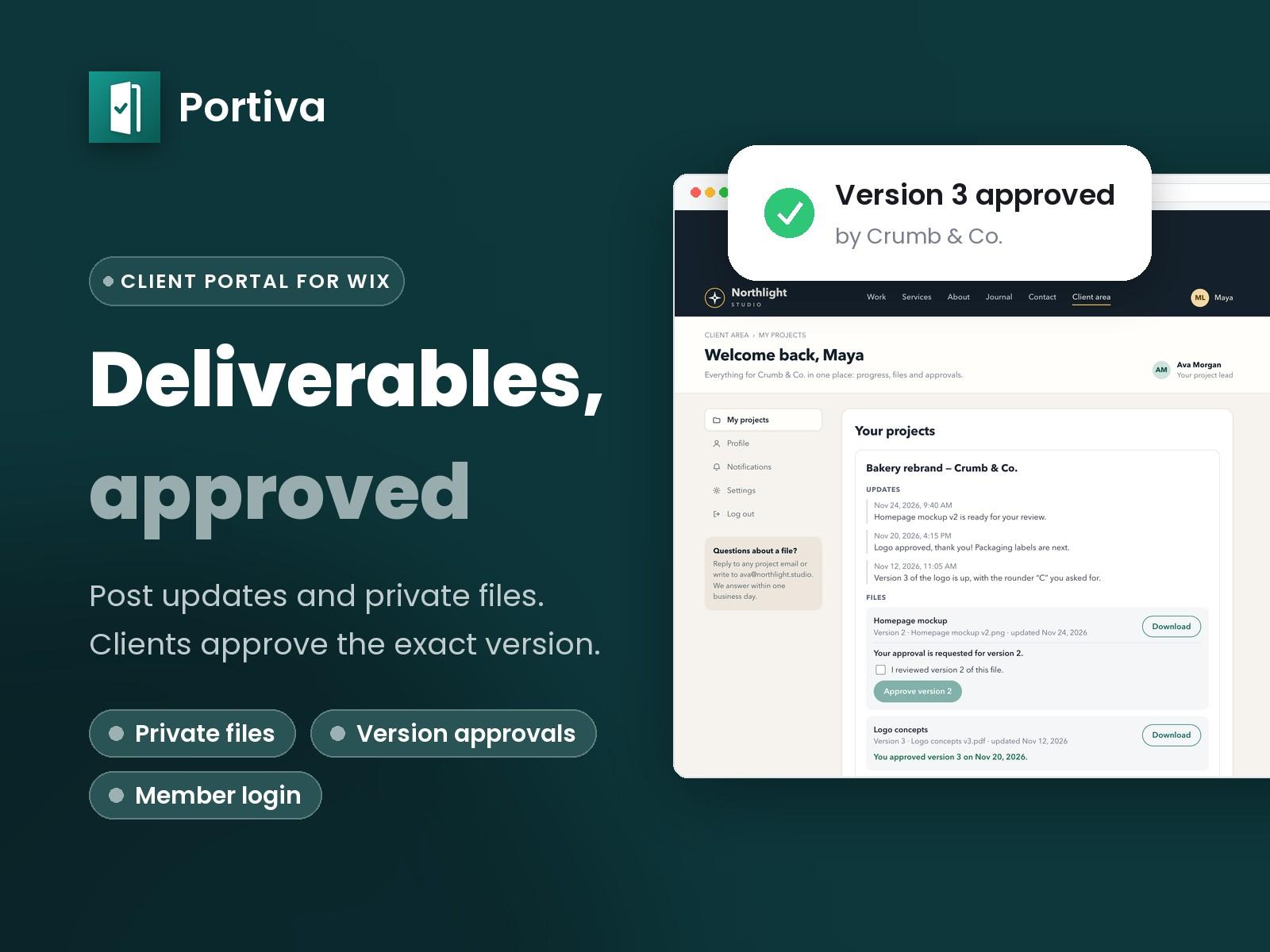
Designers, agencies, consultants and contractors send clients a steady stream of drafts, updates and “is this the final version?” emails. A client portal puts all of that in one private place on your own site: each client logs in and sees where their project stands, downloads the latest files and approves the version they reviewed. This guide shows how to set one up on a Wix site.
Decide what the portal is for
A good client portal answers three questions without an email: where does my project stand, where are the latest files, and what do you need from me? Start with those, and keep billing, contracts and conversations in the tools you already use.
- Status updates in one timeline
- The latest version of each file
- A clear request when you need an approval
Give each client a member account
Wix Members Area lets visitors sign up and log in to your site. Each client needs a site member account, so ask them to sign up or invite them from your site’s contacts. Then put the portal on a members-only page so it is only visible after login.
With Portiva you create a project in your dashboard and assign it to one site member. That client sees the project after logging in; other members never do.
Post updates and share files privately
Post a short update whenever the work moves forward. Clients see the newest first, which replaces most “any news?” emails.
Share files as private media rather than public links. In Portiva, PDFs, images, Word and Excel files are stored as private files in your Media Manager, and your client downloads them through links that expire after 15 minutes. When the work changes, upload a new version of the same file so the history stays together.
Ask for approval on a specific version
The most expensive mix-up in client work is approving one draft and building from another. Tie every approval to a version: request approval of version 3, and record that the client approved version 3.
In Portiva, the client ticks that they reviewed the version and approves it, and you see which version was approved and when. It is a clear record of the client’s go-ahead, not a contract or an electronic signature.
Frequently asked questions
Does Wix have a client portal?
Wix Members Area gives clients a login and member pages. A client portal app adds what goes on those pages: a private project per client, updates, files and approvals.
Can clients see each other’s files?
Not in Portiva. Every request is checked against the logged-in member, so each client sees only the projects assigned to them.
Which files can I share?
PDF, JPG, PNG, WEBP, Word (DOCX) and Excel (XLSX) files.
How much does Portiva cost?
Free includes 1 client project. Pro is $9.99/month and includes unlimited client projects.
Related Wix guides
Try Portiva on Wix
Free includes 1 client project. Pro is $9.99/month, or $99.48/year when billed yearly (17% off), and includes unlimited client projects. Billing is handled by Wix.