How to Embed a PDF on a Wix Site
How to embed a PDF in a Wix site, such as a restaurant menu, product catalog or price list, in a viewer visitors can page and zoom, and update it in one place.
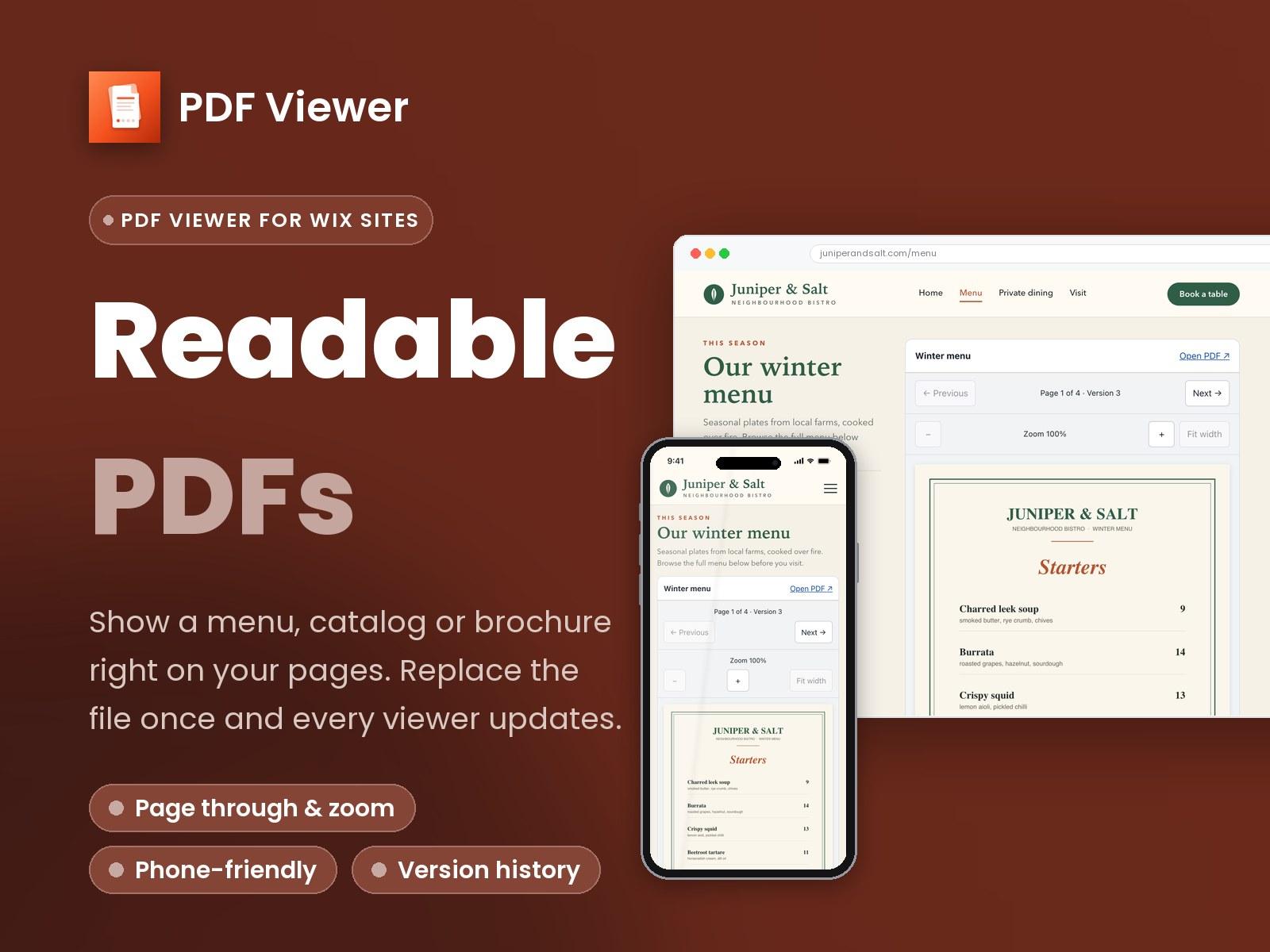
A PDF viewer lets visitors read your menu, product catalog, price list or brochure on your site. A good one is easy to page through and zoom on a phone, works from a keyboard, and is simple to update when the PDF changes. This guide covers preparing your PDF, choosing it in Viewly, placing the viewer, testing it like a visitor and replacing the file later.
Prepare your PDF
Viewly shows a public PDF from your site’s Media Manager, or one at a public link you paste. If the file isn’t in your Media Manager yet, upload it there first. Viewly never hosts PDF files itself, and it can’t show private or password-protected PDFs.
Public PDFs can be up to 25 MB and 500 pages. Viewly doesn’t do OCR, so its Read page text option can only show text the PDF already contains.
- Upload the PDF to your Media Manager first if needed
- Make sure the PDF is public
- Keep it to 25 MB and 500 pages or less
Install Viewly and choose your PDF
Install Viewly from the Wix App Market. The viewer is added to your site, and you manage it from PDF Viewer in your site dashboard.
Choose your PDF from the Media Manager or paste its link. Viewly checks the file before saving, then shows an unsaved live preview so you can see the document in the viewer first. When it looks right, save.
Every viewer on your site shows this same document. Viewly has one PDF per site, not a different document per viewer.
Place the viewer in the Editor
In the Editor, move or resize the viewer where you want it, such as on your menu or catalog page. Every viewer you place shows the same saved PDF.
Publish and test it like a visitor
Publish your site and open the page on a phone. Page through the PDF with the previous and next buttons, zoom between 100% and 300%, and try Read page text, which shows the current page’s text. The Open PDF link to the original file is always shown.
Then try it with only the keyboard: the controls are labelled for screen readers and work from the keyboard. If a file can’t be shown, visitors see a neutral message, “This document isn’t available right now.”, with Try again, and the rest of the page keeps working. Check that the PDF is still public, in your Media Manager or at its link.
Update your PDF when it changes
When your menu or prices change, open PDF Viewer, choose Replace PDF, pick the new file and save. Every viewer on your site updates, and the earlier version moves to version history. You can also remove the PDF; Viewly asks you to confirm first.
Version history keeps the last 10 replaced or removed versions privately and shows them only in your dashboard, each with an Open PDF link. Pro is $4.99/month, or $4.14/month billed yearly, and restores any earlier version as the live version in one click.
Frequently asked questions
Can I embed a PDF in Wix without code?
Yes. Viewly adds the viewer to your site, and you choose the PDF from your Media Manager or paste its link in the site dashboard.
Can I show my restaurant menu as a PDF on Wix?
Yes. Upload the menu PDF to your Media Manager, choose it in Viewly and save. When the menu changes, replace the PDF once and every viewer on your site updates.
Can I show a private or password-protected PDF?
No. Viewly shows public PDFs only, up to 25 MB and 500 pages.
How much does Viewly cost?
Free includes one PDF in every viewer, paging, zoom and version history. Pro is $4.99/month, or $4.14/month billed yearly, and adds one-click restore of any earlier version.
Related Wix guides
Try Viewly on Wix
Free includes one PDF in every viewer, paging, zoom and version history. Pro is $4.99/month, or $4.14/month billed yearly, and adds one-click restore of any earlier version.