How to Add an Audio Player to a Wix Site
How to add an audio or music player to a Wix site with MP3s from your Media Manager, build a playlist, and check that it works with a keyboard and on a phone.
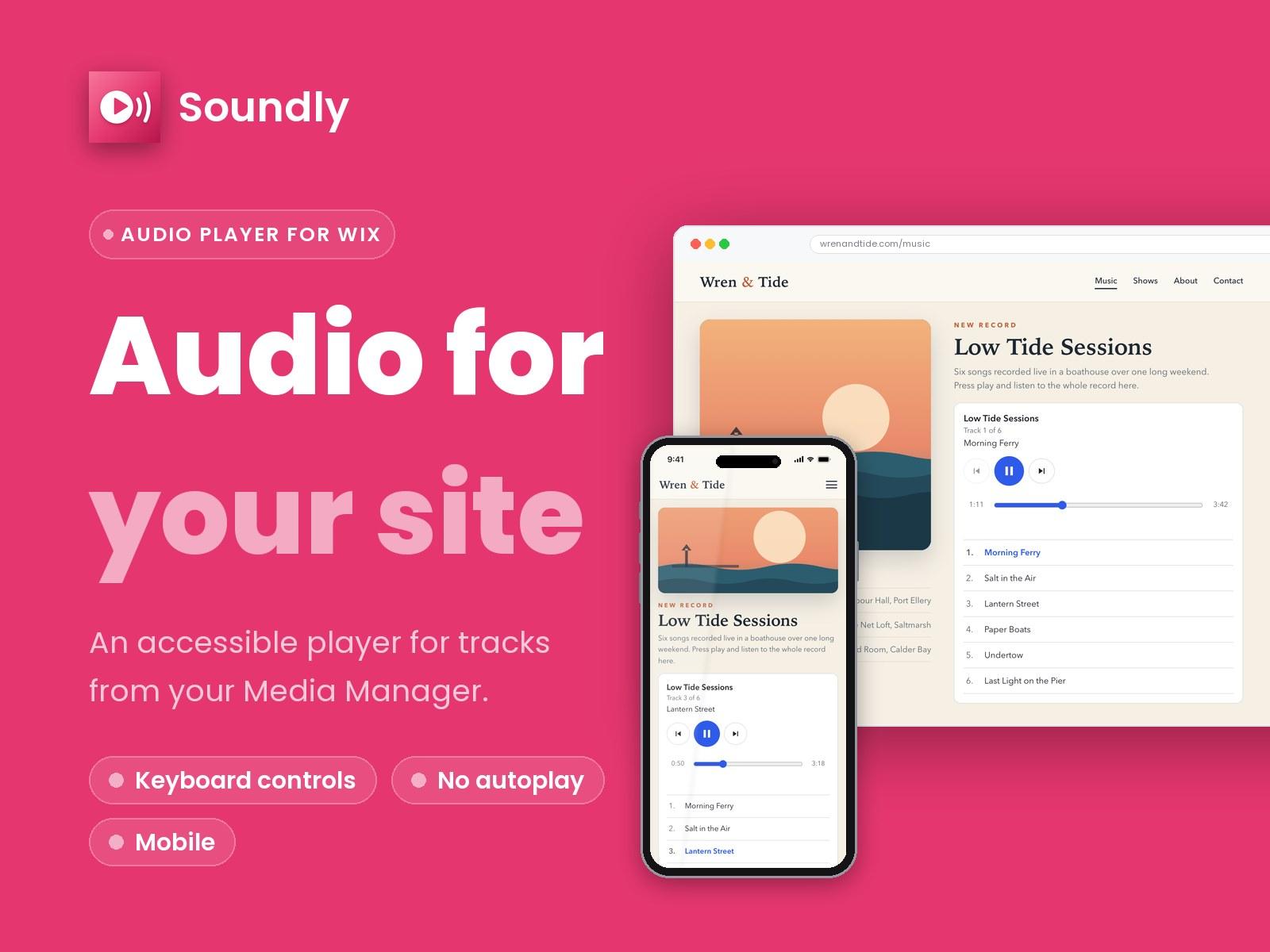
An audio player lets visitors hear your music, recordings or readings without leaving your site. A good one starts only when a visitor chooses, works from a keyboard and with a screen reader, and is easy to tap on a phone. This guide covers preparing your audio files, building a playlist with Soundly, choosing how the player shows on the page and testing it before you share it.
Prepare your audio files
Soundly plays audio files that are already in your site’s Media Manager, so upload your tracks there first. It never hosts audio itself, and it plays files from your Media Manager only, not links to audio on other sites.
The player uses the browser’s built-in audio support, so the formats that work depend on the visitor’s browser. MP3 works everywhere, which makes it the safest choice.
- Upload tracks to your Media Manager
- Use MP3 for the widest browser support
- Have an https link ready for any transcript
Install Soundly and build your playlist
Install Soundly from the Wix App Market. The player is added to your site, and you manage it from the Soundly page in your site dashboard.
Choose Add audio files and pick tracks from your Media Manager. Name each track so visitors see a real title instead of a file name, put the tracks in order, remove any you don’t need and add a transcript link where you have one. The live preview shows the player with your changes; save when it looks right.
The Free plan includes up to 3 tracks. Pro includes up to 50 tracks for $5.99/month, or $4.97/month billed yearly.
Choose whether to show the track list
In the Editor, open the player’s settings to show or hide the track list. Showing it lets visitors see the whole playlist and pick a track; hiding it keeps the player compact. Soundly has no style or color controls, so this is the main choice you make in the Editor.
Publish and test it like a visitor
Publish your site and open the page. Using only the keyboard, move to the player, play and pause, go to the previous and next tracks and use the seek slider. Then try it on a phone, where the controls are large enough to tap easily.
The player never autoplays, so sound starts only when a visitor presses play, and only one player plays at a time on a page. If a file can’t play, the player shows a plain message with Try again and Next track. Check that the file is still in your Media Manager and in a format the browser supports, such as MP3.
Make your audio easier to follow
A transcript helps visitors who are deaf or hard of hearing, and anyone who would rather read. Add a transcript link to each track with spoken content.
A keyboard and screen-reader friendly player is one part of an accessible page. The headings, text and other content around it still need their own check.
Frequently asked questions
Can I add an MP3 player to Wix without code?
Yes. Soundly adds the player to your site, and you build the playlist from your Media Manager in the site dashboard.
Does the player autoplay?
No. Soundly never autoplays. Sound starts only when a visitor presses play.
Can I use audio hosted on another site?
No. Soundly plays files from your site’s Media Manager only, not links to audio elsewhere.
How much does Soundly cost?
Free includes up to 3 tracks. Pro is $5.99/month, or $4.97/month billed yearly, and includes up to 50 tracks.
Related Wix guides
Try Soundly on Wix
Free includes up to 3 tracks. Pro is $5.99/month, or $4.97/month billed yearly, and includes up to 50 tracks.